

Setup
SMTP Sender Account - eCards
Learn how to configure SMTP email accounts in eCards for sending personalized cards.
To send your first message, you first need to set up an email account at eCards.io. You can add multiple accounts to the list of your sender email accounts.
Step 1: Access Email Accounts Settings
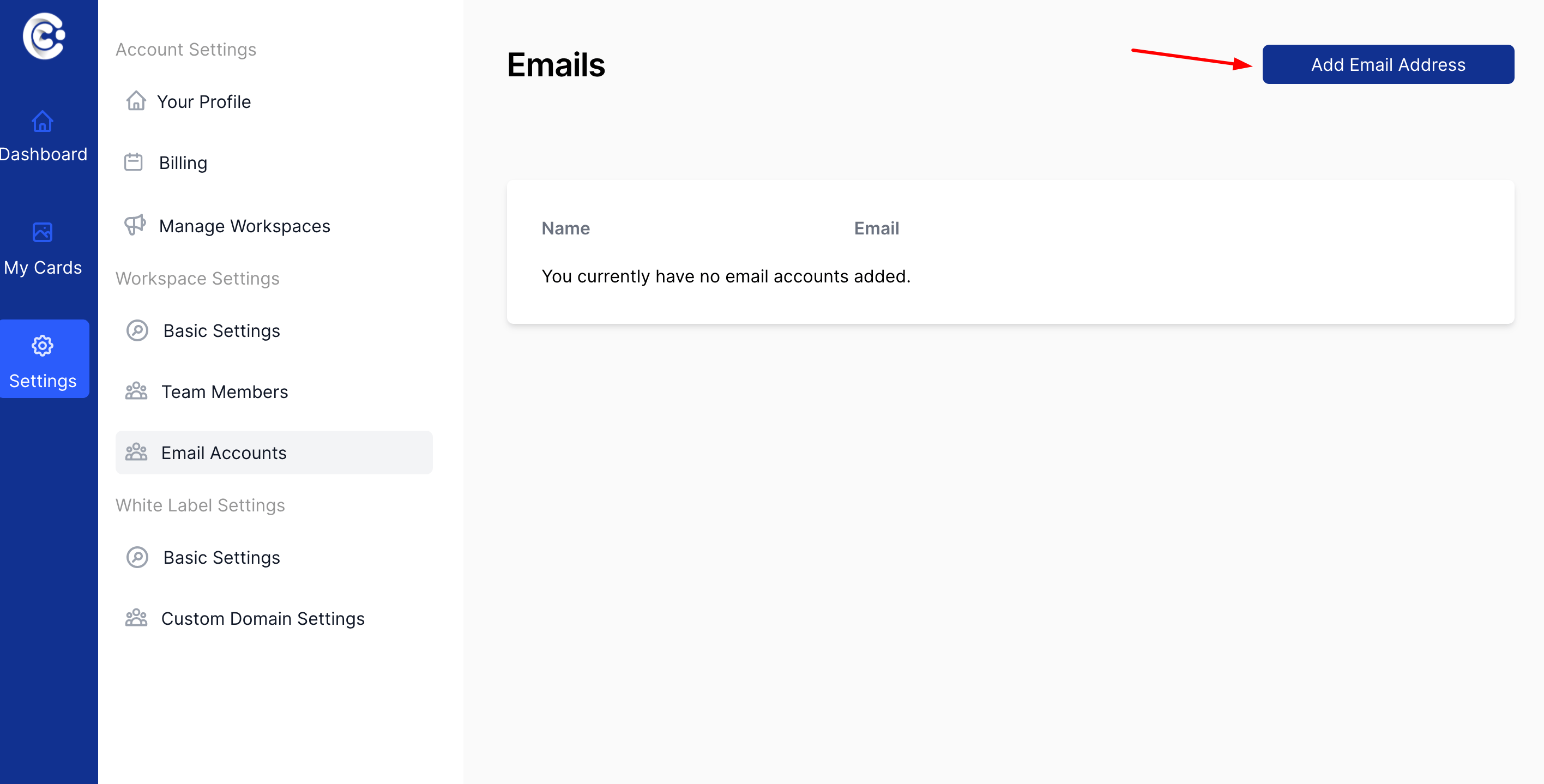
In your account settings, navigate to the Email Accounts tab. Click the "Add Email account" button.
Step 2: Fill in Basic Details
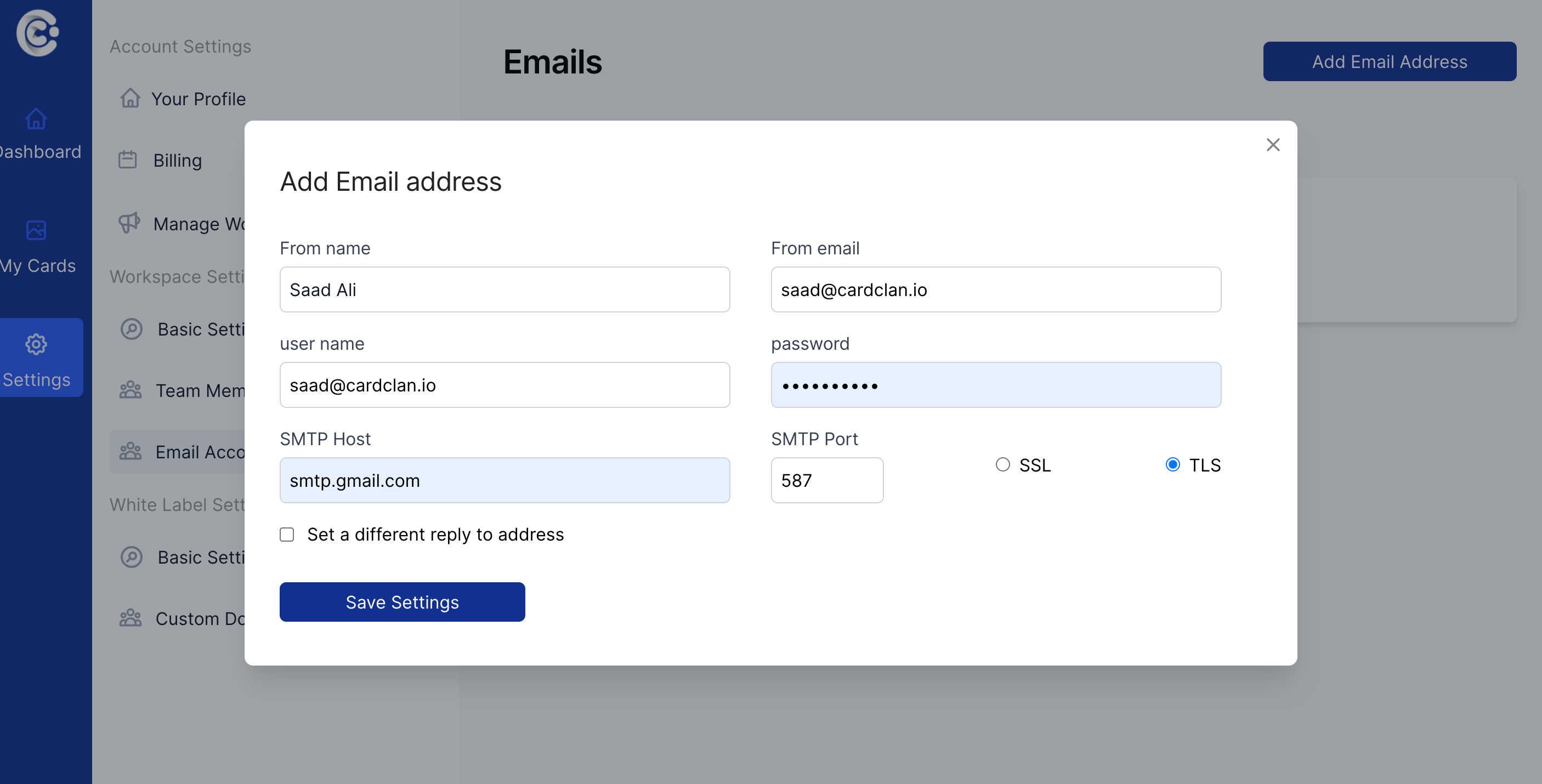
Fill in the following details in the form:
- From name - a name the recipient will see on incoming messages from you
- From email - the email address from which the emails will be sent
- Username - your username on the email server (usually, this is your email address)
- Password - your password from the email account that you indicated in the Username field
Step 3: Configure SMTP Settings
Fill in the rest of the settings:
- SMTP Host - the name of the email server (usually has this format: smtp.domainname.com)
- SMTP Port - the port number for email sending (usually 587)
Step 4: Optional Reply-To Configuration
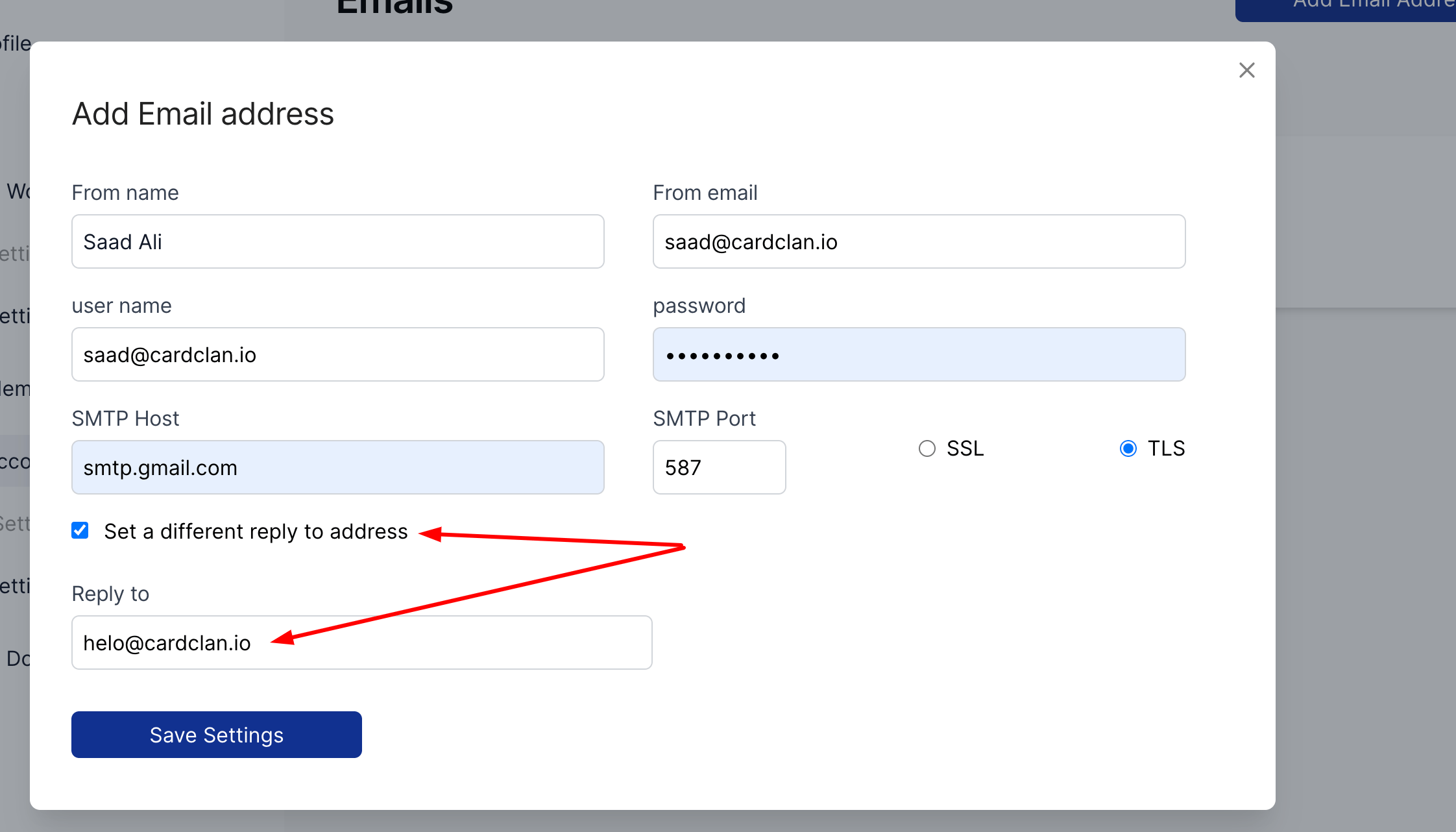
If you want to receive replies on a different email, check the option to set a different "Reply to" address.
[!WARNING]
Important Note: Please note that sometimes Google can restrict access to your data according to their latest security policy. If you are facing
any issues with connection, please check the following settings solutions for Gmail SMTP accounts or Google
Workspace.