

How to grant admin access to your directory
How to grant admin access to your directory
Some work on your directory (audits, builds, installs, troubleshooting) needs admin access to your site. You never need to share your login for this. Learn how to grant administrator access to your account, either by manually creating a new admin profile or by inviting an existing user via email (Method 2 is our preferred method).
Navigating to Admin Accounts
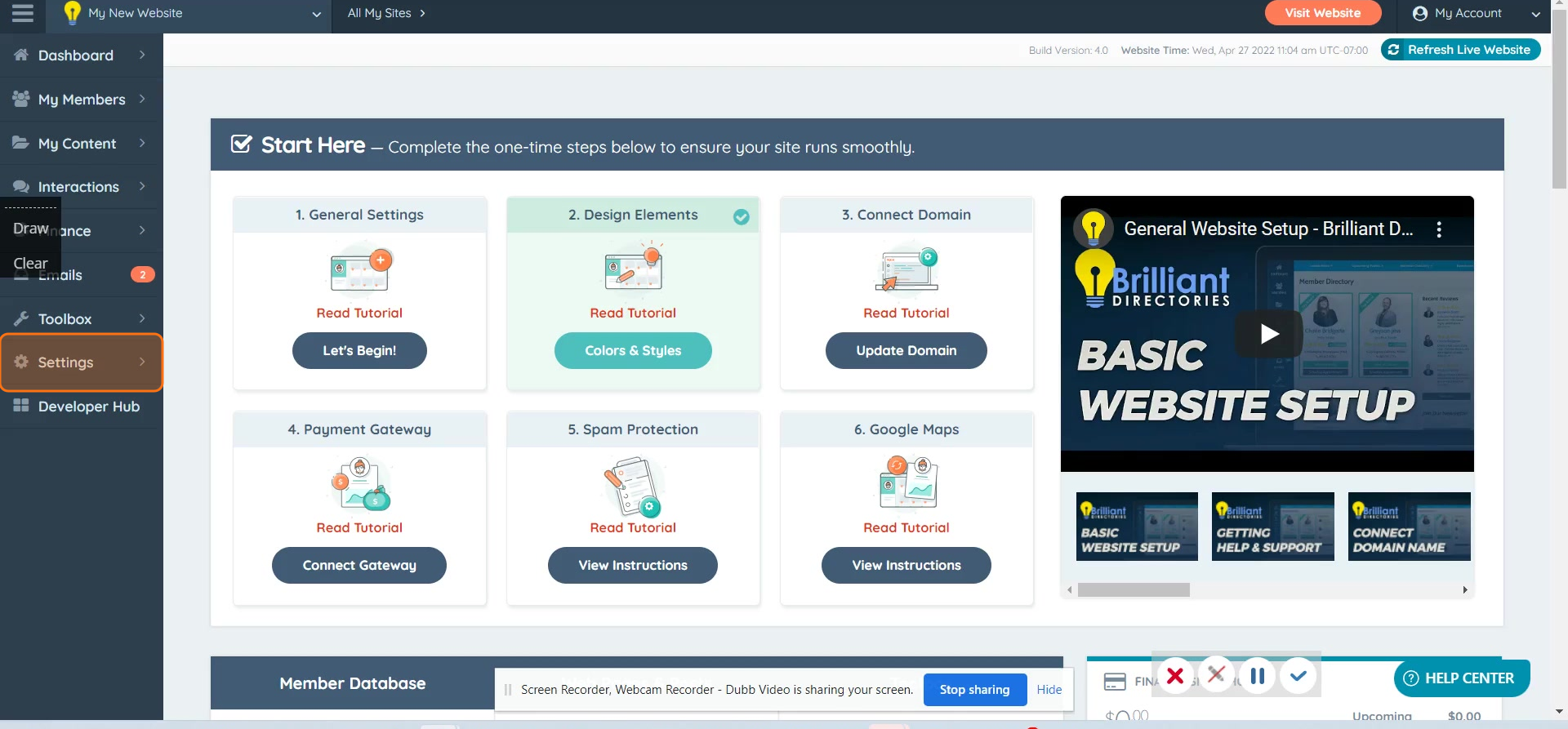
Step 1. First, navigate to Settings.
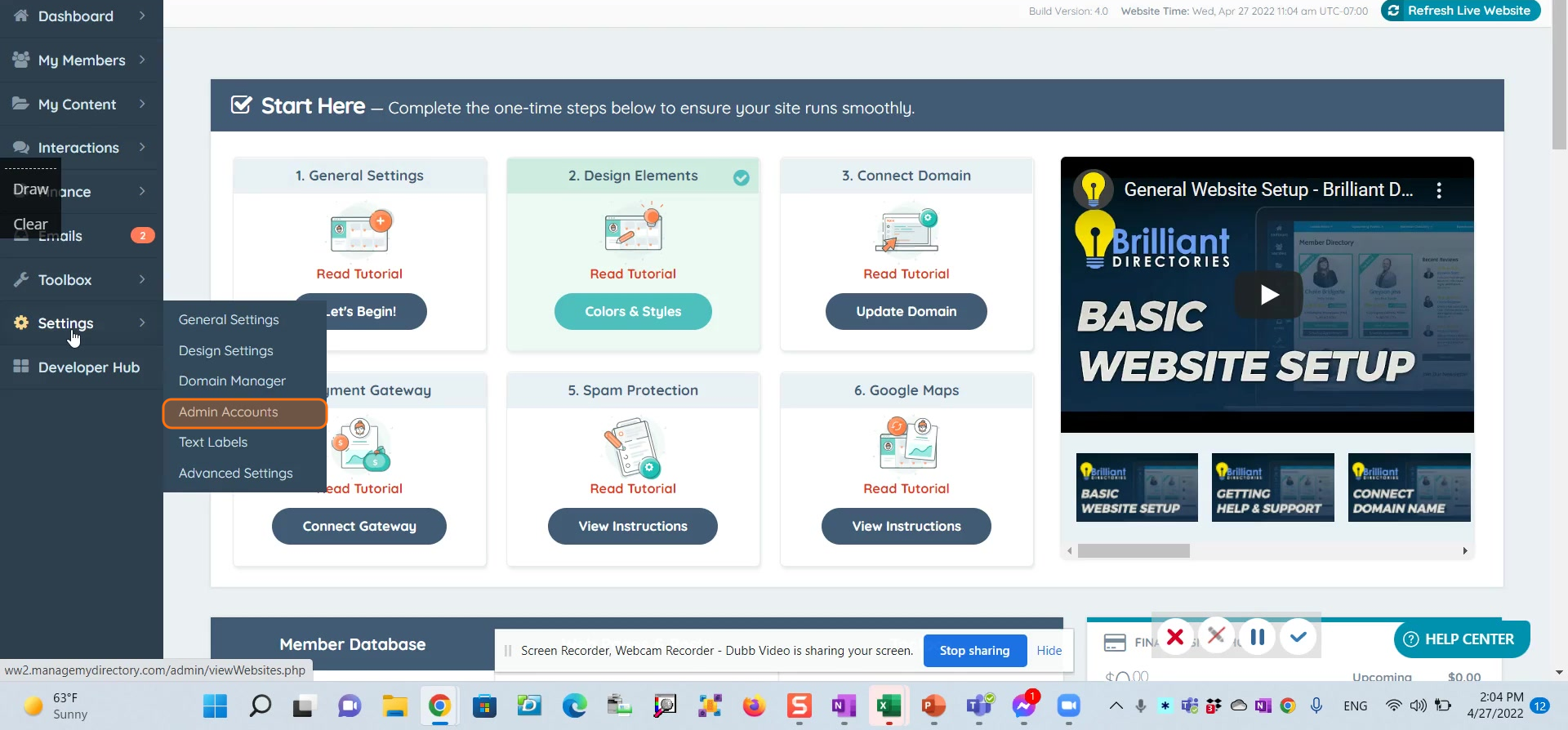
Step 2. Next, select Admin Accounts from the menu.
Method 1: Manually Create a New Admin
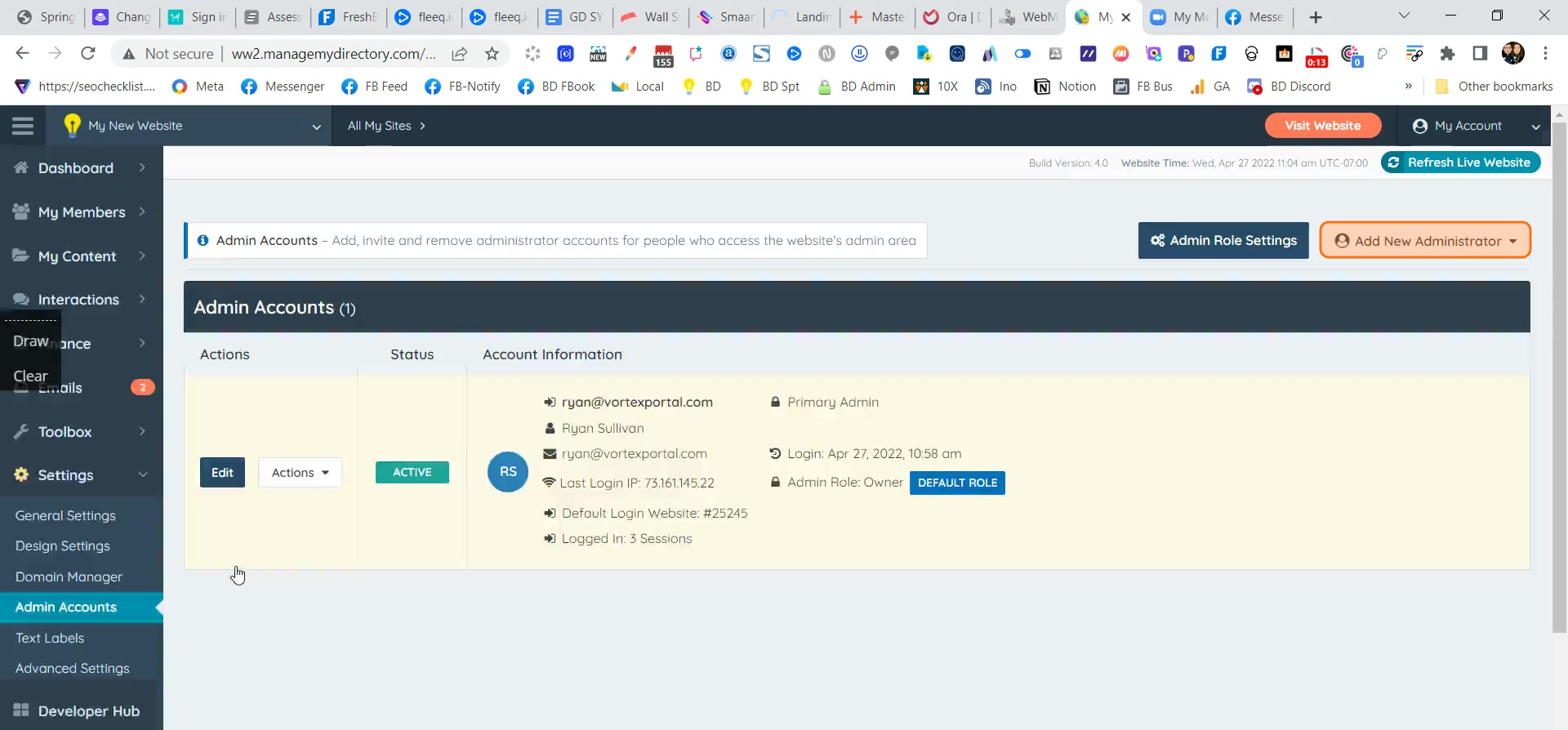
Step 3. To begin, click the Add New Administrator button.
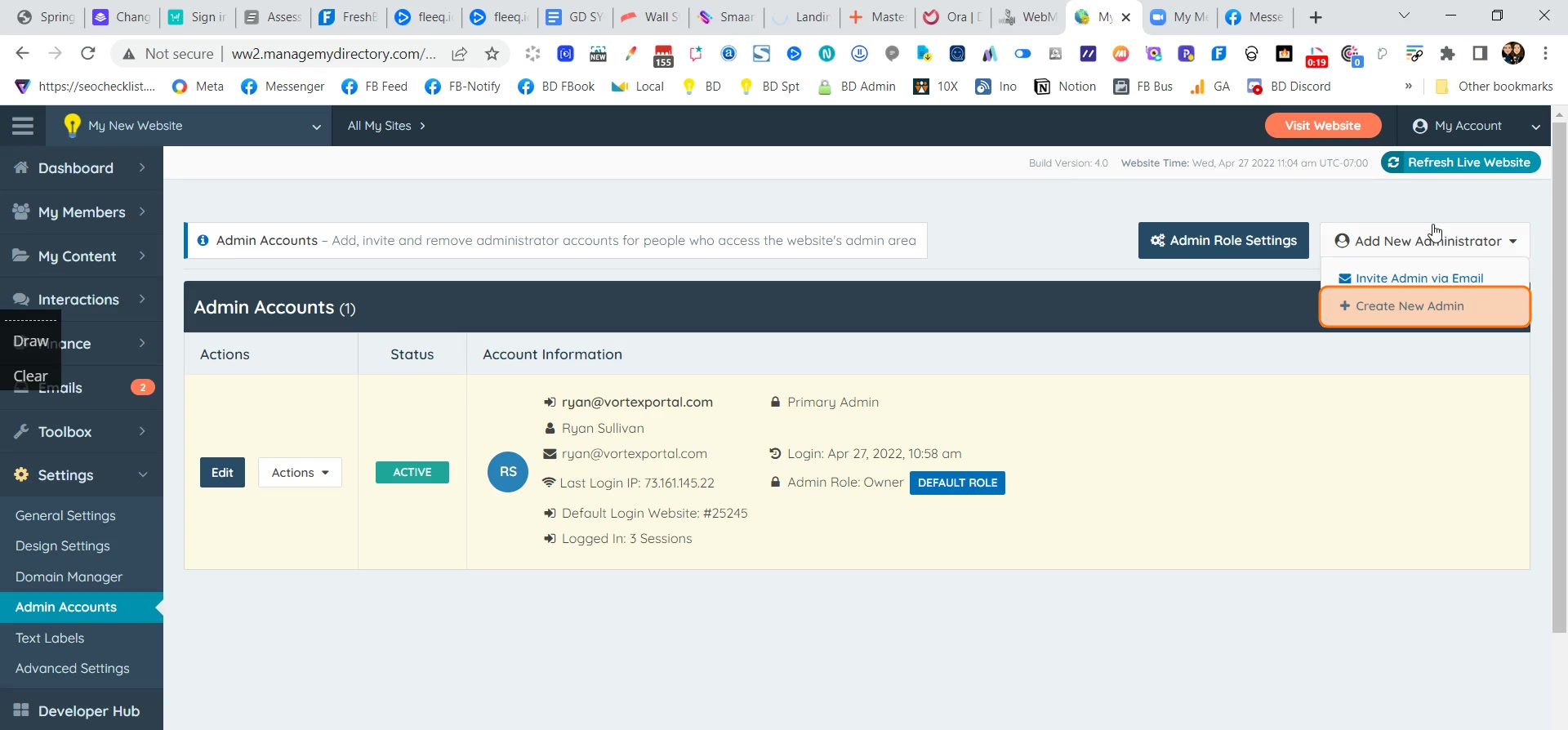
Step 4. Then, choose Create New Admin from the options.
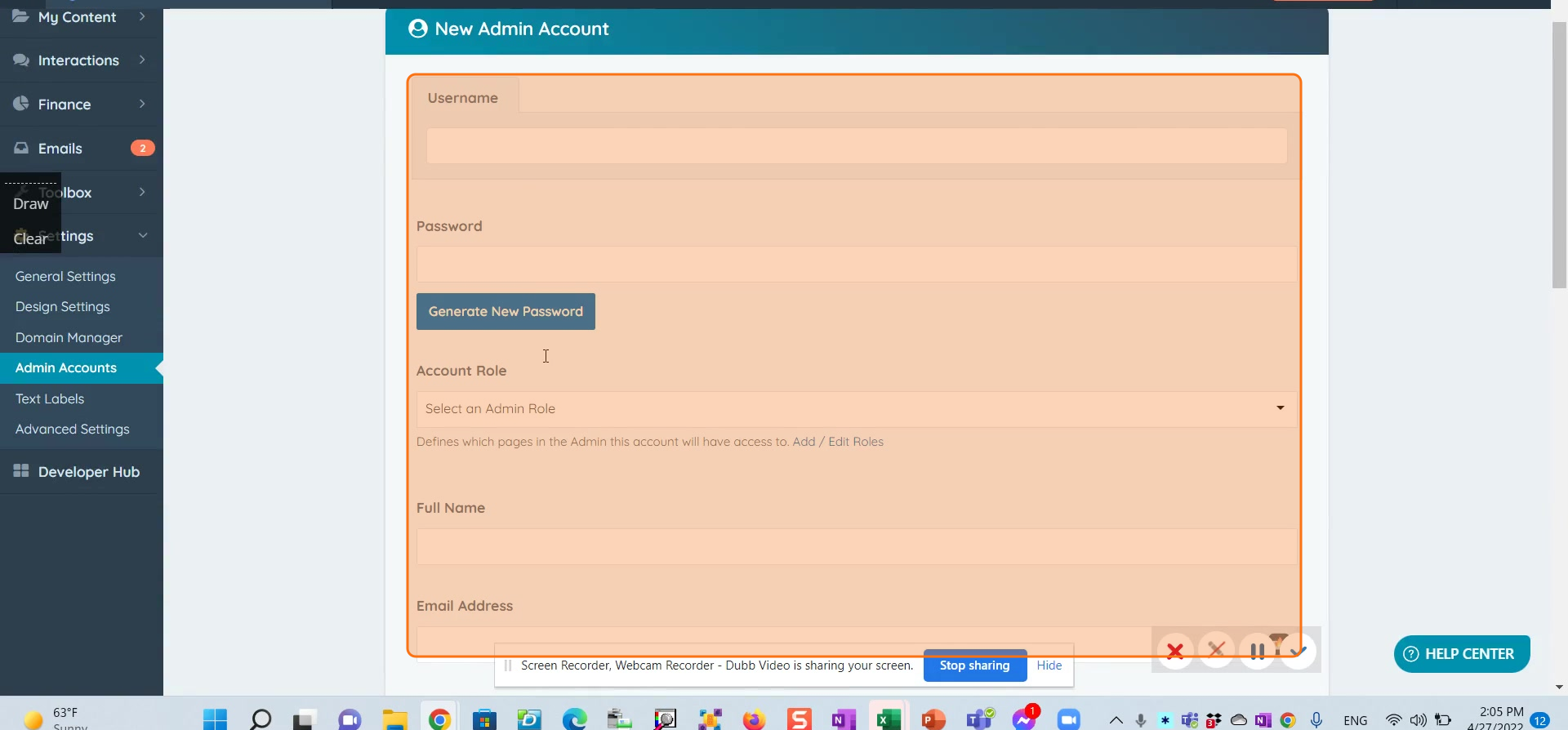
Step 5. Now, manually enter the new administrator's username, email, and password. Then, select their initial account role.
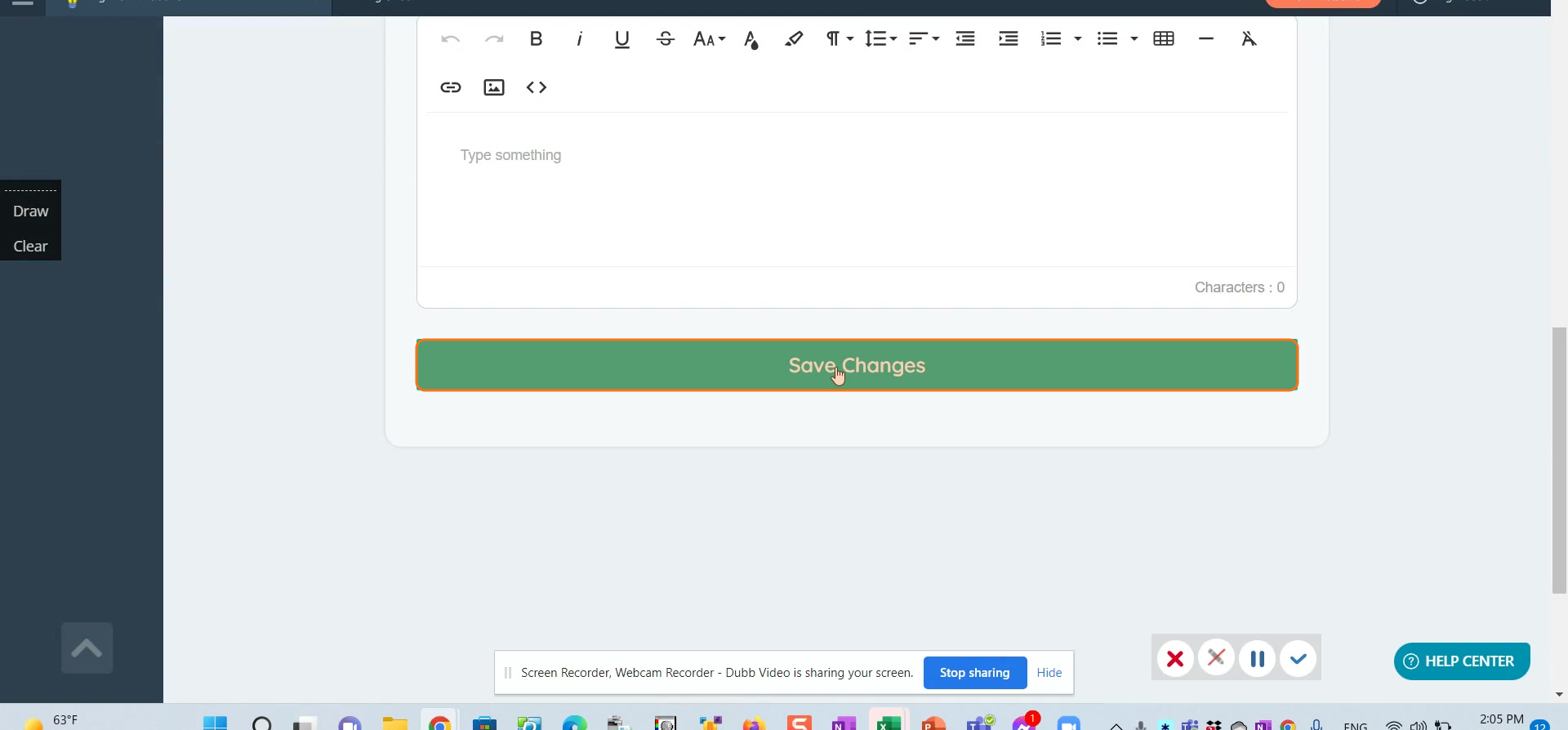
Step 6. Once you've filled in the details, click Save to apply your changes.
Please note, you must manually share the username and password with the new administrator so they can log in. They will not receive an automated notification about their new account.
Method 2: Invite an Admin via Email
This method is recommended for developers or users who already have an existing admin account within the BD system, and is the one to use to grant us access -- add support@directorytoolkit.com this way, never by sharing a password. If you attempt to manually create an account with an email that's already in use, the system will prompt you to use a different email.
Step 7. First, click the Add New Administrator button.
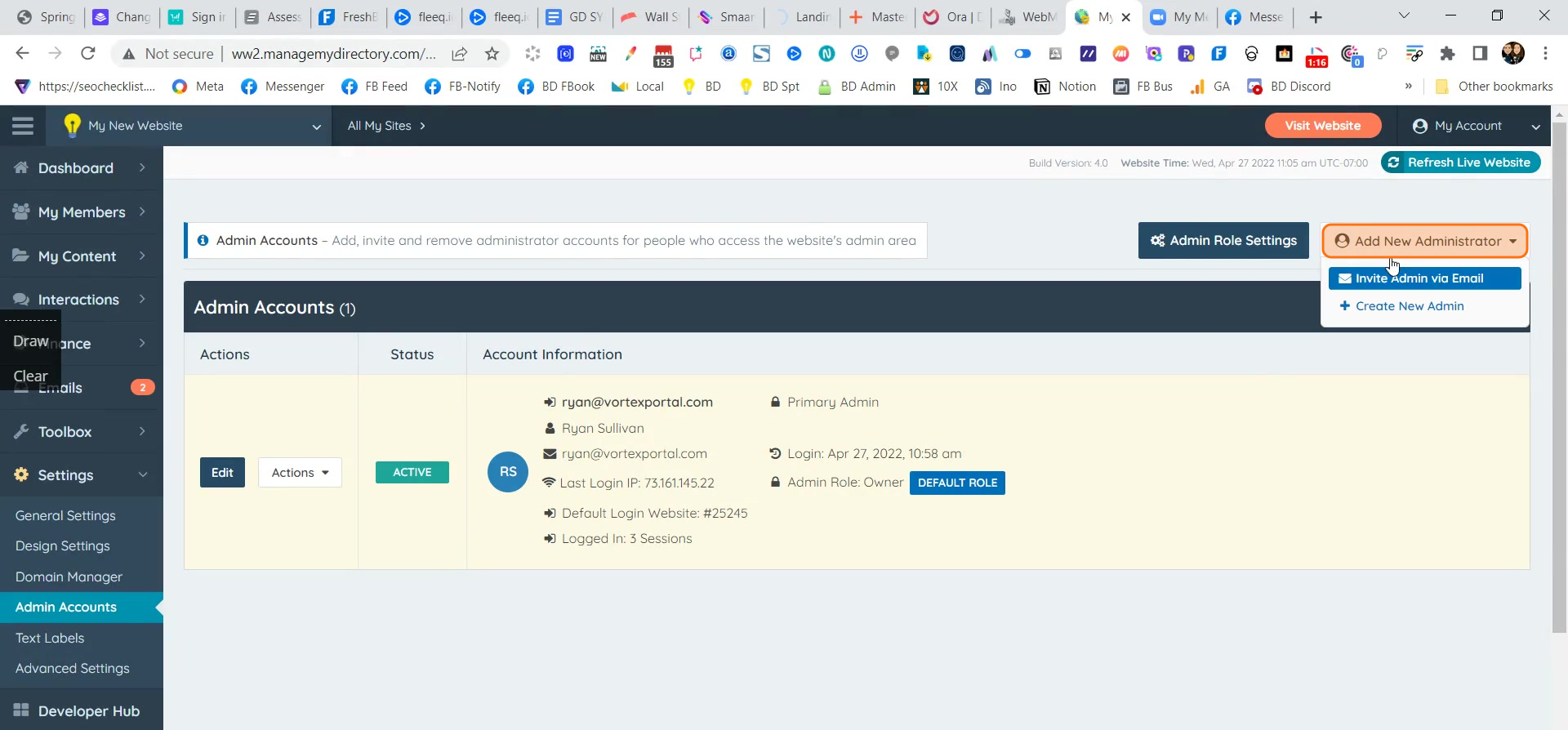
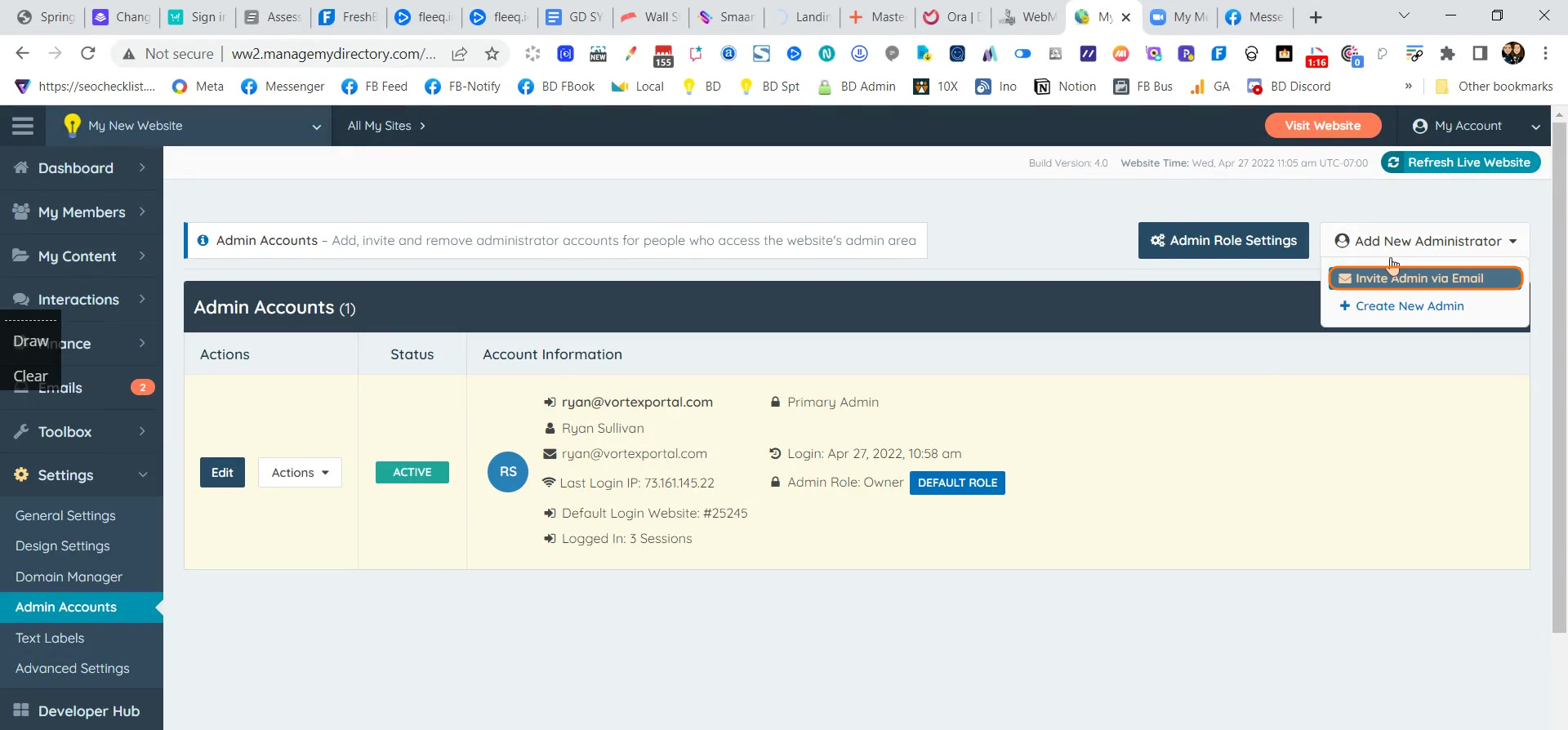
Step 8. Next, select Invite Admin via Email.
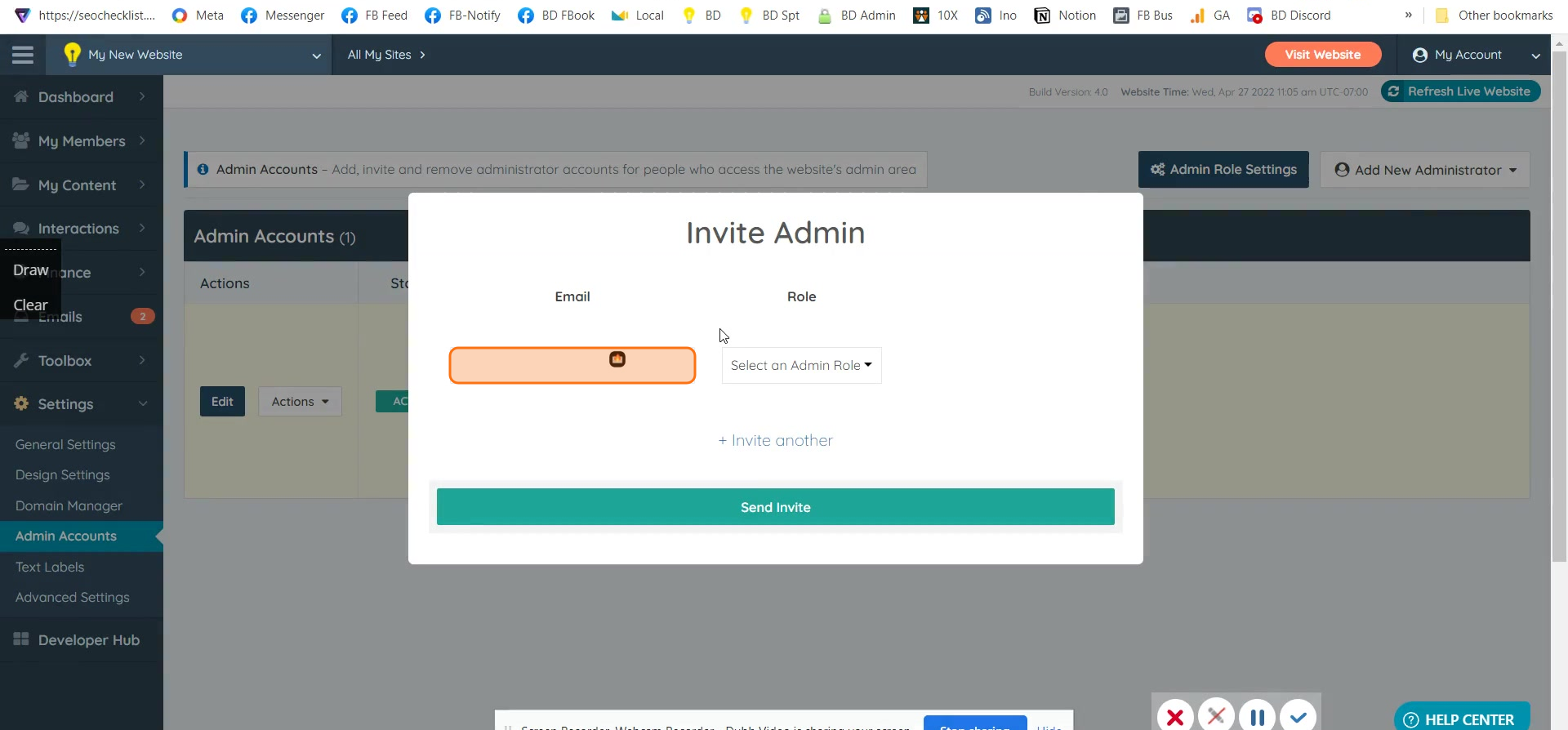
Step 9. Now, enter the user's email address, for example, support@directorytoolkit.com.
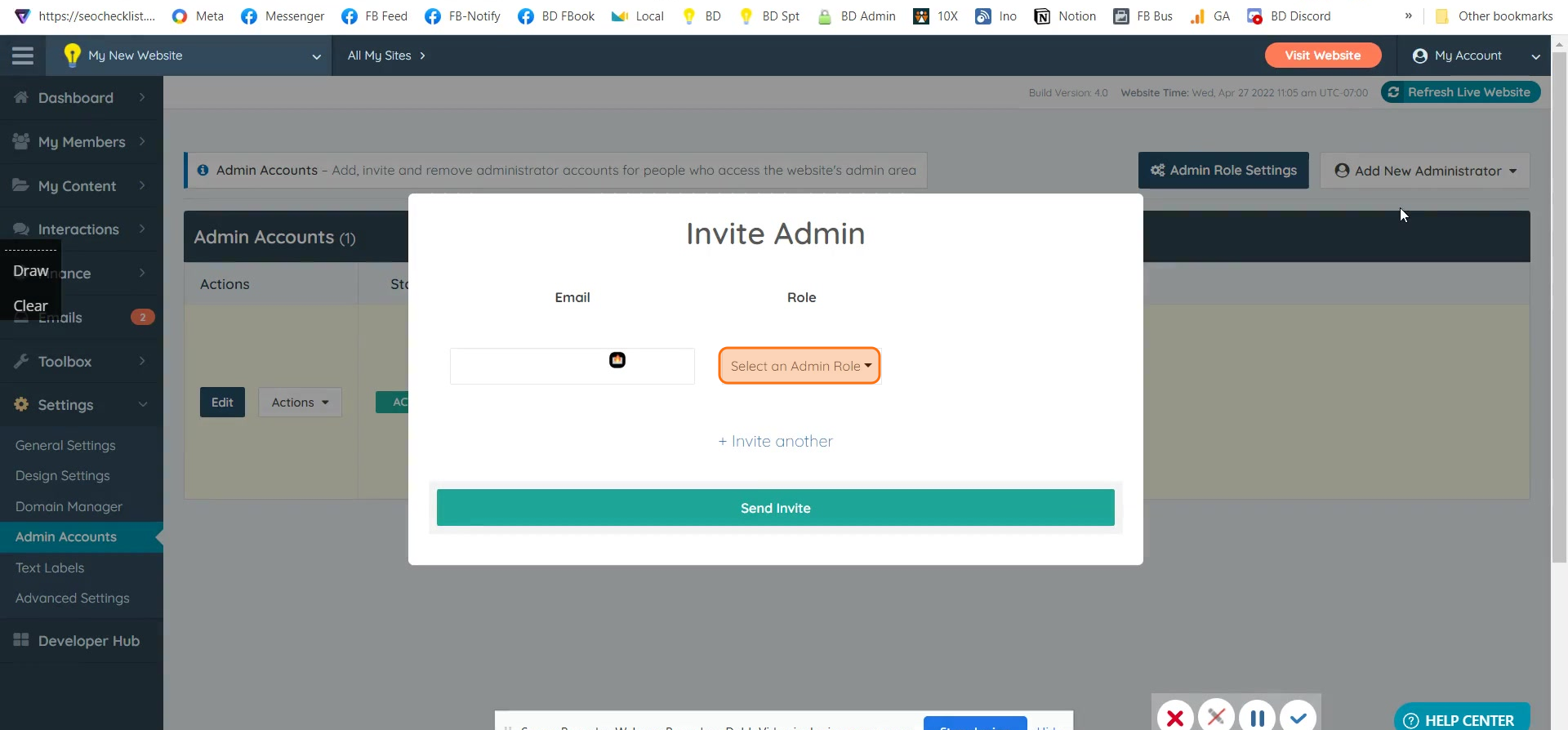
Step 10. Next, select their desired admin role, such as Full Access.
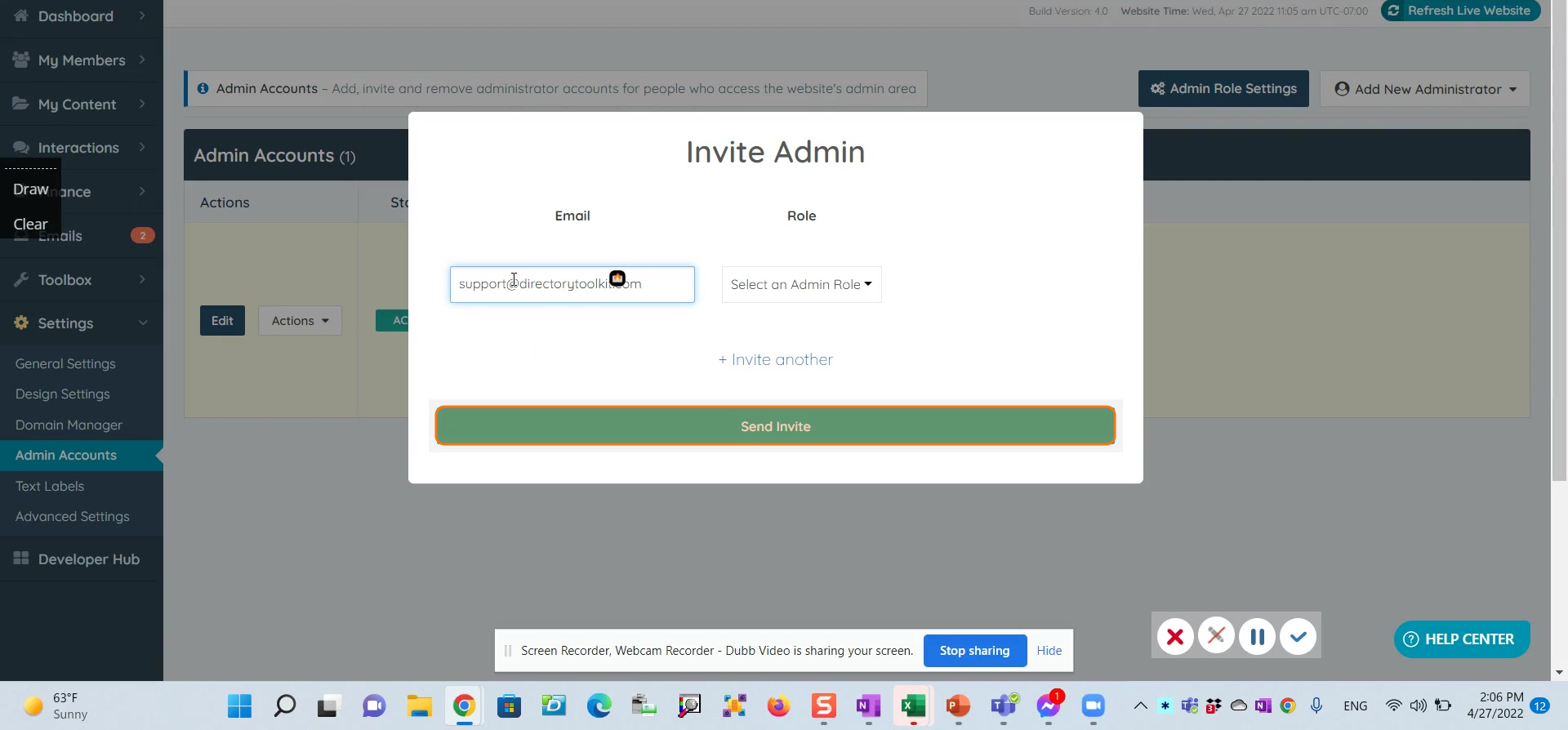
Step 11. Finally, click the Send Invite button to send the invitation.
The invited user will receive an email containing a one-click activation link. They must click this link to accept the invitation and link their account to your site.
Please be aware that the invitation link expires after 24 hours. If the link times out, you will need to repeat the invitation process to send a new link. There's no issue with sending multiple invites if needed.