

Setup
Office 365 Manual Setup - eCards
Learn how to configure Microsoft Office 365 email accounts with eCards for sending cards.
To connect to Microsoft 365, there are a few things that you need to change from the admin center.
Follow the step-by-step process or watch this quick video guide:
Watch Office 365 Setup Guide
Configuration Details
SMTP Settings:
- Host: smtp.office365.com
- Port: 587
- Username: your email
- Password: your password
Step 1: Access Admin Center
Make sure you are logged into the admin office 365 account:
- Click on settings
- Then click Admin Center
- Then click show all within the admin center
- Then click Azure Active Directory
- Then scroll down find the properties tab
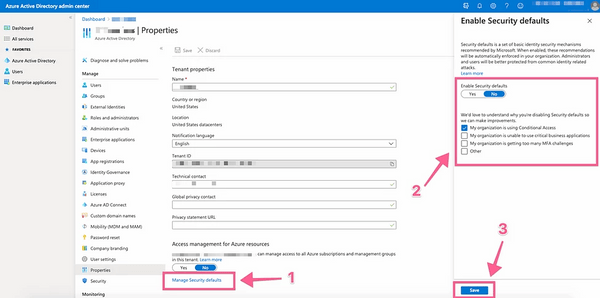
Step 2: Adjust Admin Properties
Within the admin properties section, you will need to Enable Security defaults to No.
To do this click "Manage Security Defaults" then click No within the right-hand slider window.
Step 3: Allow The Inbox To Use SMTP & IMAP
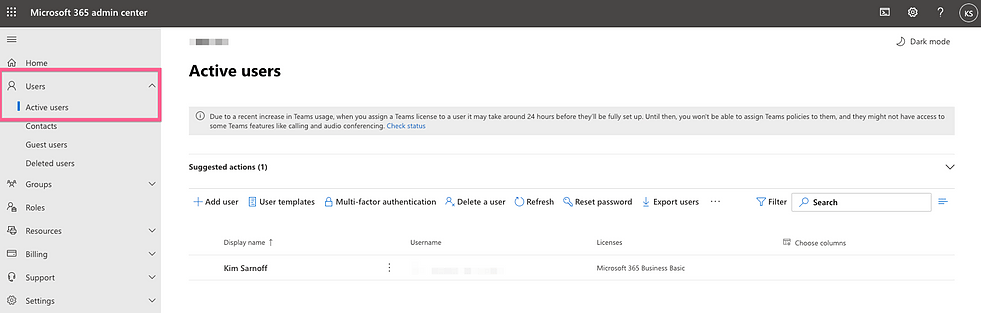
A. Access Active Users
First go back to the Admin Center and select Users > Active Users
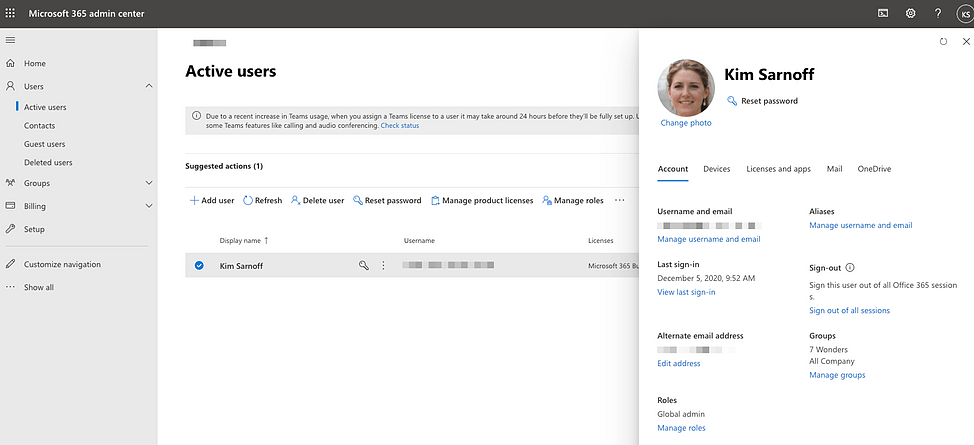
B. Select User Account
Select the inbox that you want to add to eCards. By doing this a slider will come out.
C. Configure Email Apps
Select the Mail tab within the slide and click Manage email apps
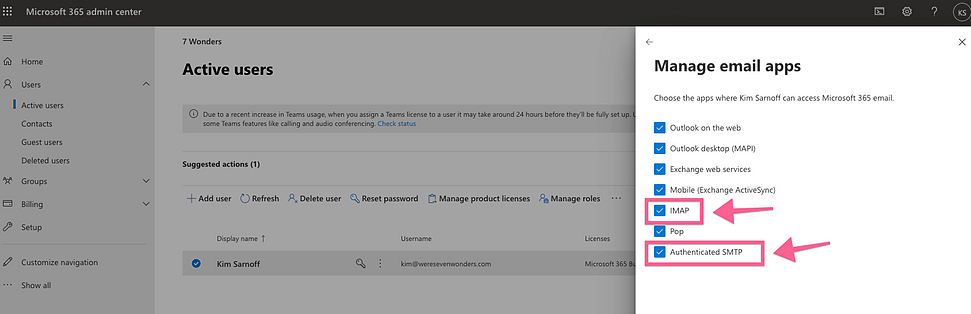
D. Enable IMAP and SMTP
Ensure IMAP and Authenticated SMTP are checked.
[!WARNING]
Wait for about an hour, then try reconnecting to allow the changes to propagate.