

Gmail Setup and Authorization Fixes - eCards
Learn how to configure Gmail with eCards and resolve Google authorization issues.
Video Tutorial
Here is a video tutorial for connecting Gmail with eCards:
Watch Gmail Setup Tutorial
Check the following settings while setting up a Gmail sender account via SMTP to avoid connectivity issues and allow full Google authorization:
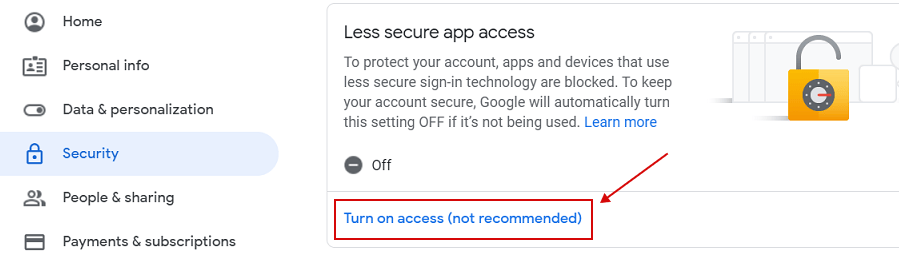
Setting 1: Turn less secure app access On
In your Google account settings, turn the Less secure app access On.
[!NOTE]
This setting is not available for accounts with enabled 2-Step Verification: such accounts require an application-specific password for less secure
app access.
Set up an SMTP account on our platform. In 5 minutes, the set-up should start working as normal.
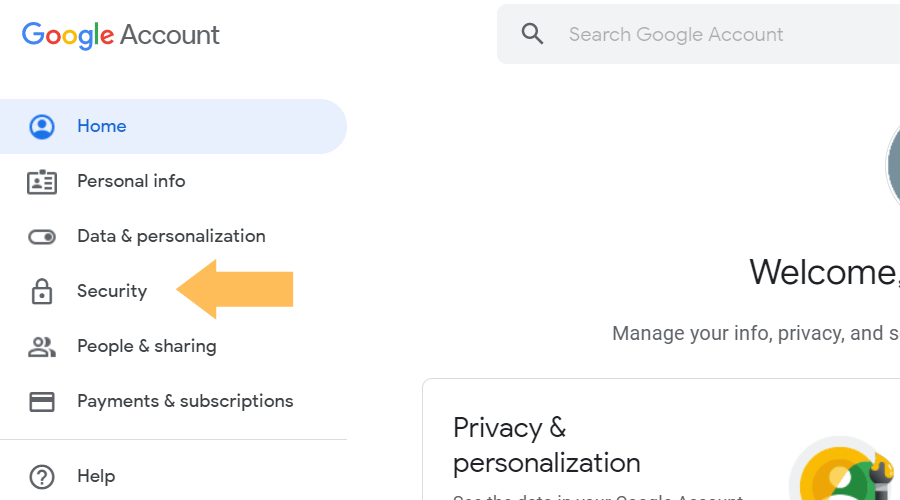
Setting 2: Set up 2-factor authentication
Two-step authentication is a great way to keep your email account safe and secure. It will also help avoid any blocking for connection attempts by Gmail, which can happen if you do not have this security measure in place!
On the Signing in to Google panel, click on 2-Step Verification. Select Get started.
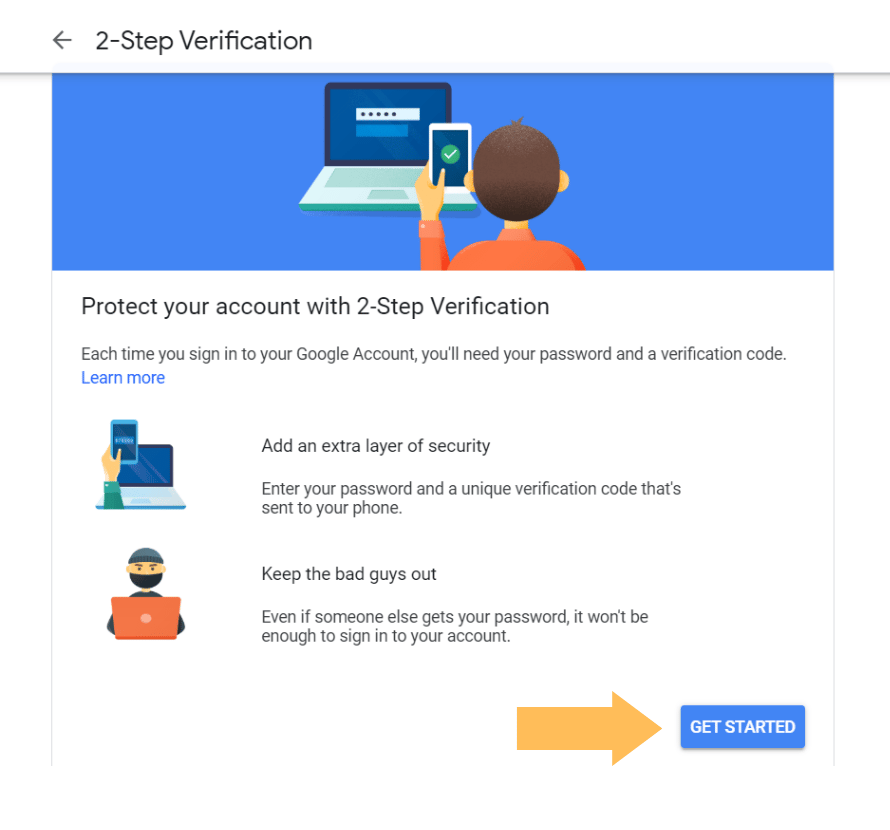
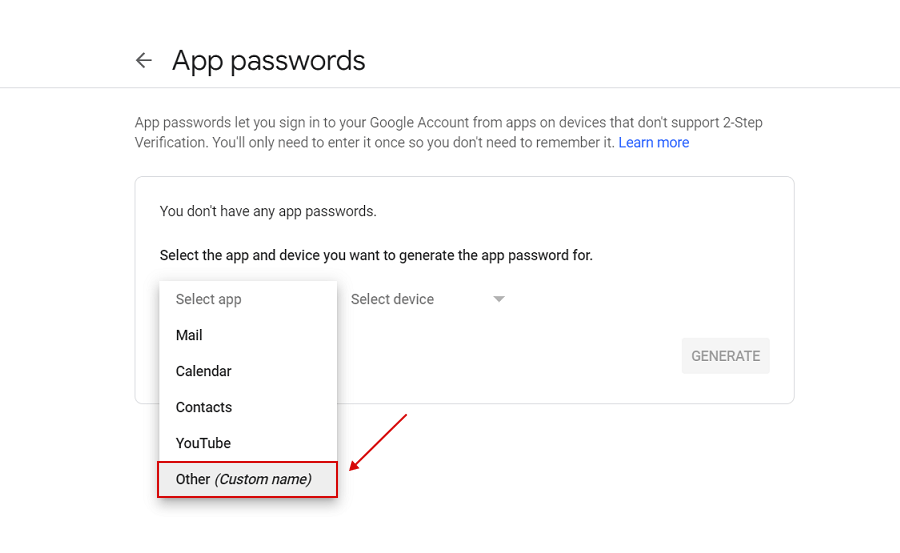
Follow the steps on the screen. In the Signing in to Google window, add an App password.
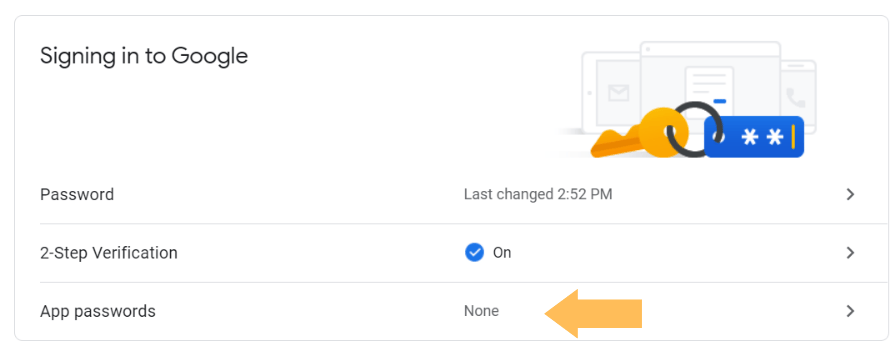
Direct link to create app password: https://myaccount.google.com/apppasswords
Select Other (Custom name), insert eCards.io and generate the app password.
Save the generated app password - you will need it while setting up an SMTP account.
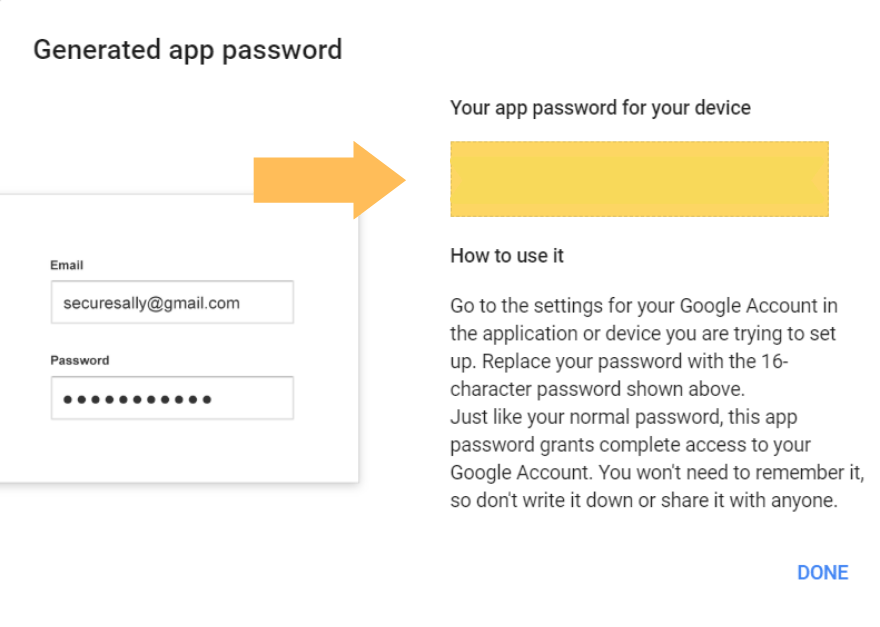
You've set up 2-Step Verification and an app password!
[!NOTE]
Contact us if you have any questions or issues, or if none of the above solutions worked in your case. We're happy to
help!