

Directory Hours - Addons
Each member sets their weekly hours, and visitors see at a glance who is open now, on the profile, on search results and on the map.
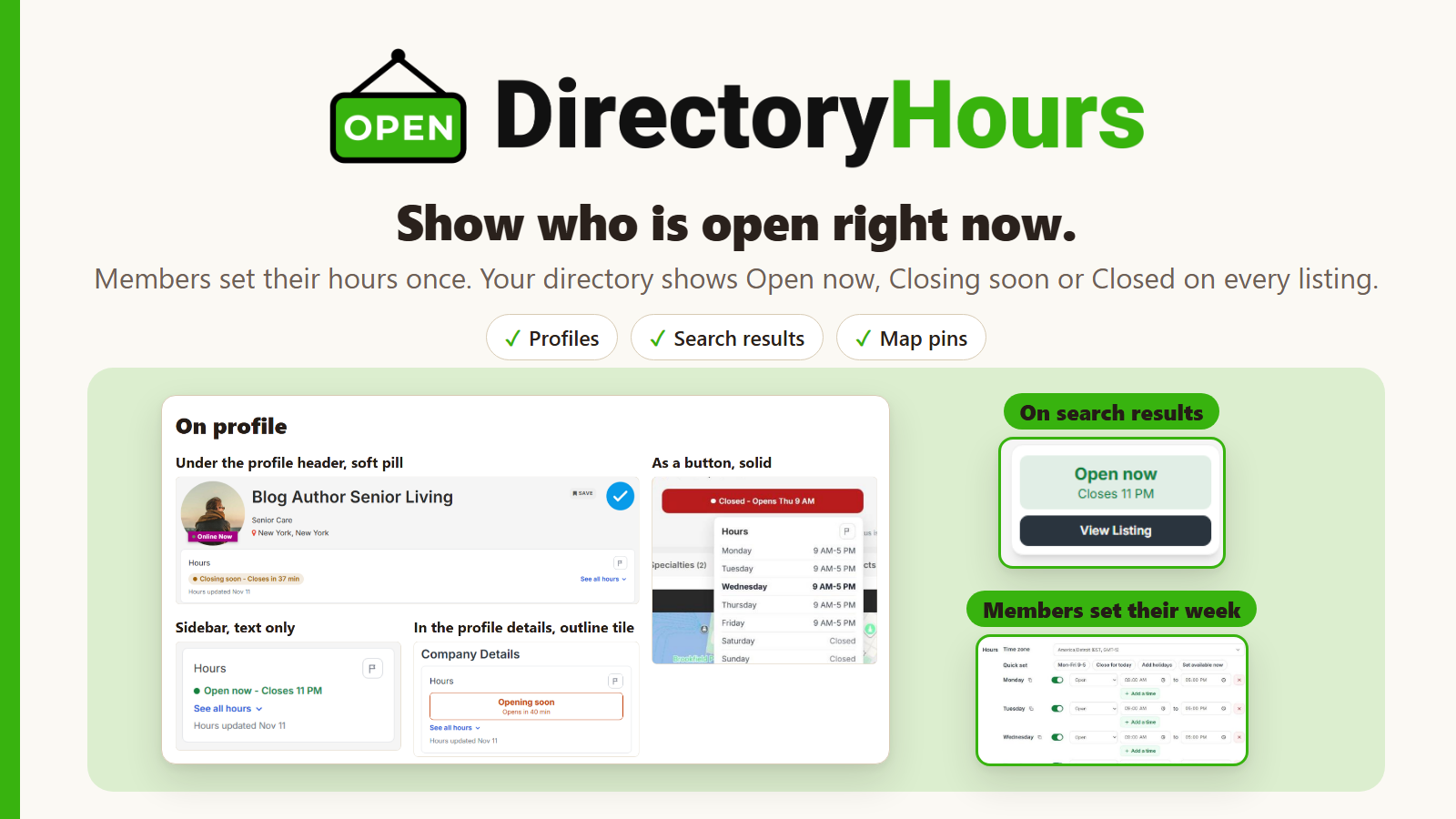
What it does
Every member gets an hours editor on their profile form. They set their weekly hours once, and your directory shows a live status beside their listing: Open now, Closing soon, Opening soon, Closed, or Temporarily closed, with the next change, such as "Closes 5 PM" or "Opens Tue 9 AM".
Visitors stop guessing whether a business is open before they call or drive over.
Where it lives
In your DirectoryCustomize plugin admin: Plugins then DirectoryCustomize then My Widgets then Directory Hours. The switch in the panel header turns the whole add-on on or off. Turning it off hides the hours everywhere, and the hours your members entered stay saved.
Setting up
- Open Directory Hours and pick which membership plans get hours, or leave it on for everyone.
- Choose where the status shows: on profiles, on search result cards, and in map pin popups.
- On the Design tab, pick the shape and look of the status for profiles and for search results, and the colors for each status. You can also add an icon before the hours heading, shade today's row in the Open color, and show closed days in the Closed color.
Your members then see the hours editor on their profile form the next time they edit it.
What members can set
- Weekly hours, up to three times a day, for example a lunch and a dinner service.
- A type for each day or each time slot: Open, Closed, Open 24 hours, By appointment, Online only, Walk-ins welcome, or On call.
- Hours past midnight, such as Friday 8 PM to 2 AM.
- Their time zone, so visitors in another zone see the right status.
- Seasonal hours that come back every year, such as summer hours from June 1 to August 31. Under Hours for, members pick Add seasonal hours, set the dates, and set the days the same way as their regular week. The profile shows the season's hours, with its name and dates, while it is on.
- Extra schedules for a place with more than one set of hours, such as a kitchen and a bar, or store hours and a phone line. Under Hours for, members pick Add another schedule, name it, and set its days. Each one shows on the profile as its own block with its own open or closed line. The main hours still set the listing's status and are what search uses. Temporary closures and closed holidays apply to every schedule. You choose how many extra schedules each member can add, from none to five, under Extra schedules each member can add in the Directory Hours settings. It is set to none until you change it.
- Holidays and special dates, each with a name, closed all day or with special hours.
- A closed day every month, such as the first Sunday or the last Friday of every month. The profile lists it under the hours, and the status shows Closed on those days.
- Temporary closures, from one date to another, for a vacation or a renovation.
- Hours notes, shown under their hours on the profile, for anything the times do not cover, such as "Call ahead on Sundays".
- Hide a day from the profile entirely, if you allow it in your settings.
Fill from Google
Members can copy the hours from their Google business listing with one click. The Fill from Google button sits in the hours editor's Quick set row. It finds the listing from the member's business name and address, checks that its phone, website or street address matches the member's profile, then fills the week: split shifts, closed days and 24-hour days, plus the listing's time zone. Holidays, closures and notes are left as they are, and nothing is saved until the member saves their profile.
Google sometimes takes a while to answer. The editor waits up to two minutes. If the answer comes later, the member sees Your Google hours are ready the next time they open their hours, with a button to apply them or a Not now to skip.
To turn it on, add an Outscraper API key under Settings in the Directory Hours panel (how to get one). If you already added a key for Google reviews, Hours uses that one. Lookups are charged to that Outscraper account, and each member can run one lookup a minute.
Quick set buttons
At the top of the editor, members have three shortcuts:
- Mon-Fri 9-5 fills a standard week in one click. If they already have hours, it asks before replacing them.
- Close for today marks them closed for the rest of today. Their normal hours come back tomorrow on their own.
- Add holidays opens a list of the year's holidays. The Federal holidays and Major holidays buttons tick their dates, members untick any day they stay open, and the rest are added as named dates they can still change.
What visitors see
- On the profile, the status, the full week with today marked, any upcoming holidays or closures, and when the hours were last updated.
- On search results, the status on each card.
- On the map, the status in each pin's popup.
When a business is about to open or close, the status can show the time left ("Closes in 25 min") or the clock time ("5 PM"). You choose which in the settings, and you set how many minutes ahead Closing soon and Opening soon start, separately for each.
With Online Status: Available now
If the Online Status plugin is installed, members can switch on Available now for a set time, for example to take calls on a day off. Their hours then show it beside the status, such as "Closed - Available now until 3 PM", and the button sits in the Quick set row of the hours editor.
Turn on Replace hours while Available now is on to show the member as Open until their Available now ends. It is off by default.
With DirectoryFilter: search by opening times
If DirectoryFilter is installed, you can add an Open hours filter to your search panel. Visitors can then find members open now, closing soon, closed now, open today, late, this weekend or all day, or pick a day and a time, such as Saturday after 10 PM. They can also pick an exact date in the next four weeks, such as December 24 after 5 PM, and ask for places open for at least 30 minutes to 4 hours, such as open now for at least 1 hour or Saturday at 2 PM for at least 2 hours. Times are read in each member's own time zone, and holidays, special dates, seasonal hours, monthly closed days and temporary closures are taken into account.
A day a member marks as By appointment, Online only, Walk-ins welcome or On call counts as open for that whole day. Each of the four has its own switch under Search Results & Map in the Directory Hours settings, so you can turn any of them off.
Members with no hours saved are not found by an Open hours search.
Reminder emails
Both are off until you turn them on, under Reminder Emails in the Directory Hours settings.
- Check your hours: a member whose hours have not been updated for 3, 6 or 12 months (your choice) gets one short email asking them to check. If they still have not updated, the next one comes after the same time again.
- Holiday hours: a set number of days before New Year's Day, Memorial Day, Independence Day, Labor Day, Thanksgiving, Christmas Eve, Christmas and New Year's Eve, members who are usually open that day and have not set it get one email asking for their hours that day.
Each email has a button that signs the member in and takes them to their hours. When you turn a reminder on and save, its email is added to your Email Templates. To change the wording, click Edit this email under that reminder setting.
Reports of wrong hours
If you turn on reports, visitors can flag hours that look wrong. Each report lands on the Reports tab of the Directory Hours panel, where you can see the member, the reason and the date, sort the list, and mark each report as sent, fixed or dismissed.
Still stuck?
Contact support and we will take a look at your site.