

How to find the RSS feed of a website - Social
Do you want to add RSS feeds to your content? Let us show you how you can find the RSS feeds of websites. Here are the top 5 ways you can do this so you won't miss new content from your sources!
- Look for the RSS web feed icon.

This image tells the web visitors that the RSS feed is available for that site. Simply click on it and it should take you to the RSS link.
- Look for the RSS feed on the Page Source of the website.
STEP 1: Right-click anywhere on the website and select 'View Page Source'
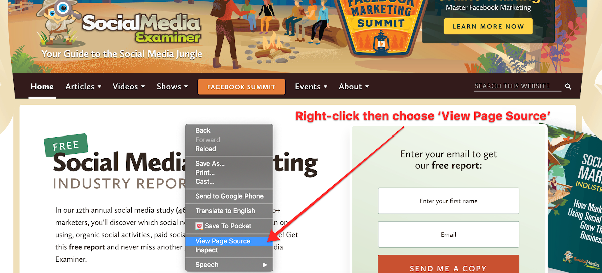
STEP 2: search the page for the keyword 'rss' and the feed URL should appear on the same row as that word:

If the feed URL isn't working when you try to automate it, navigate to that feed URL. Sometimes the feed URL they provide has subcategories that you must select to get to a valid feed. For example, Huffington Post provides a feed that actually takes you to a web page with dozens of feeds listed by category. Click on the feed you want and repeat steps 1 and 2 above.
- Type out the website link.

When it's not too obvious to find the Page Source link, you can come up with a smart guess using the most RSS feed web link that websites add to their home link. You can add the following words.
https://wwww.your domain.com/feed/
/rss
/blog/field
/blog/rss
/blog/rss
- Install an RSS browser exension.

You can check the RSS Read Feeder Chrome extension.
Check that the RSS feed you find is not a comments feed. To do this, the url should not have /comments/feed or modifications of this.