

Suite - How To Remove the Close Button
Different widget types have different methods for removing or hiding the close button.
Pop-Up
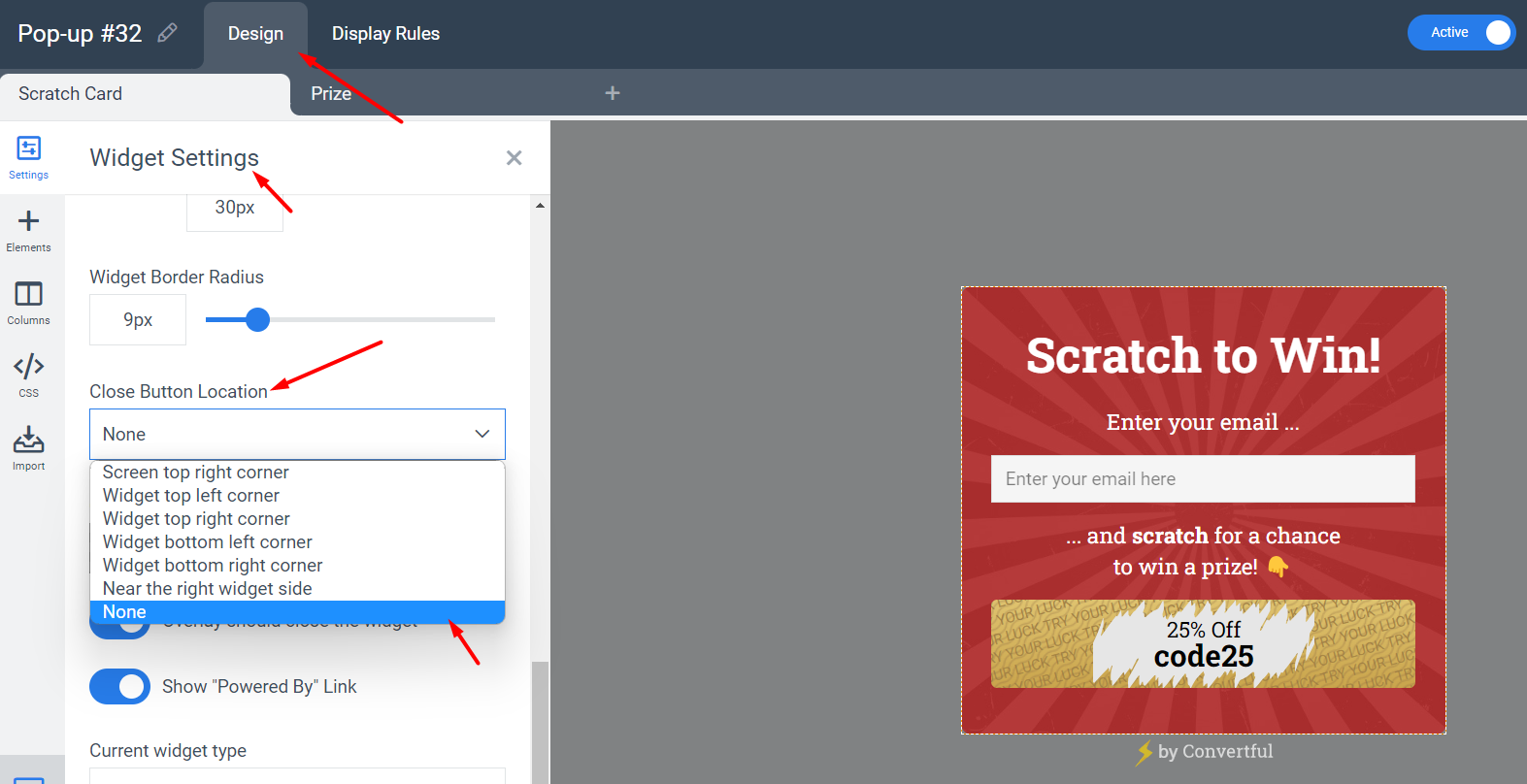
Open the widget editor and go to Widget Settings. Find the Close Button Location option and set it to "none".
Banner
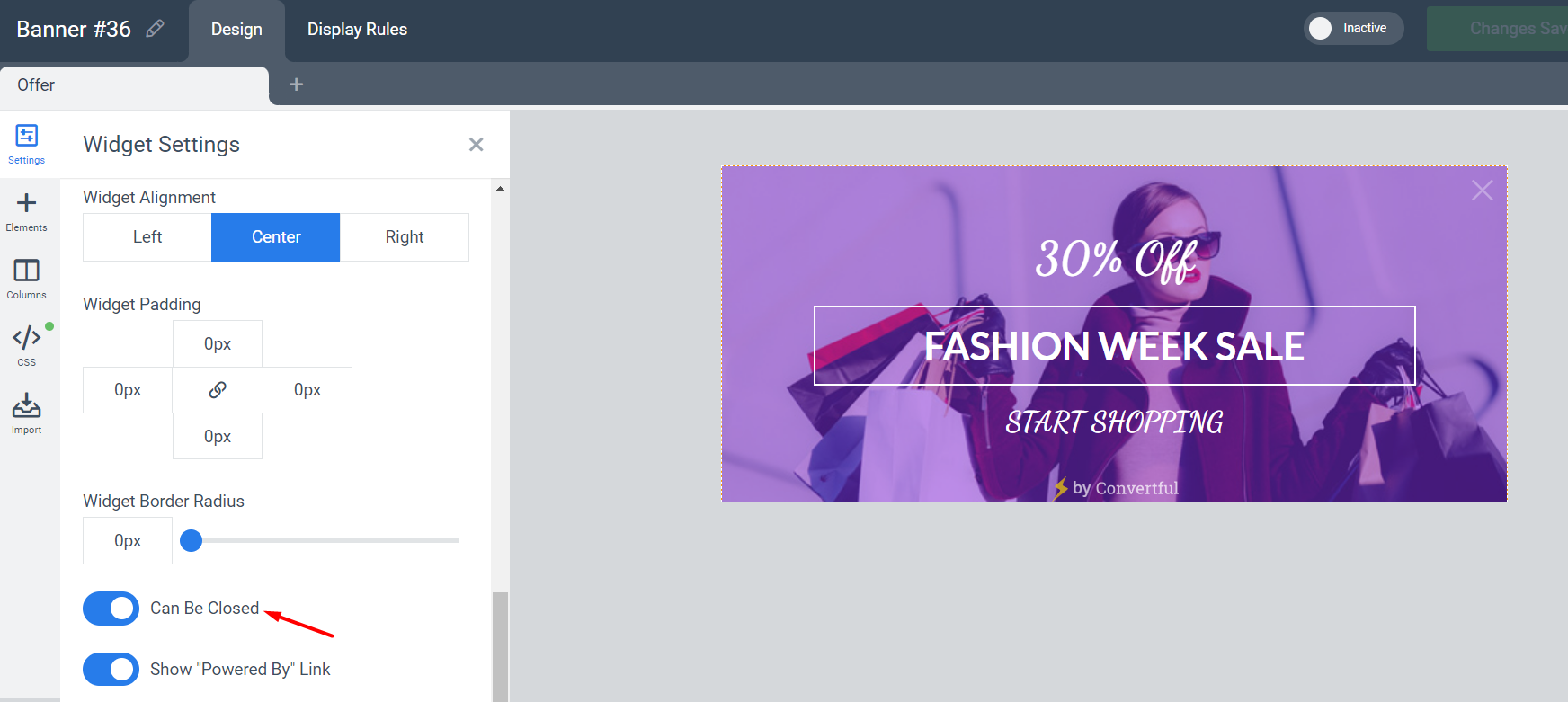
Open the widget editor and go to Widget Settings. Toggle the "Can Be Closed" option off.
Inline Widget
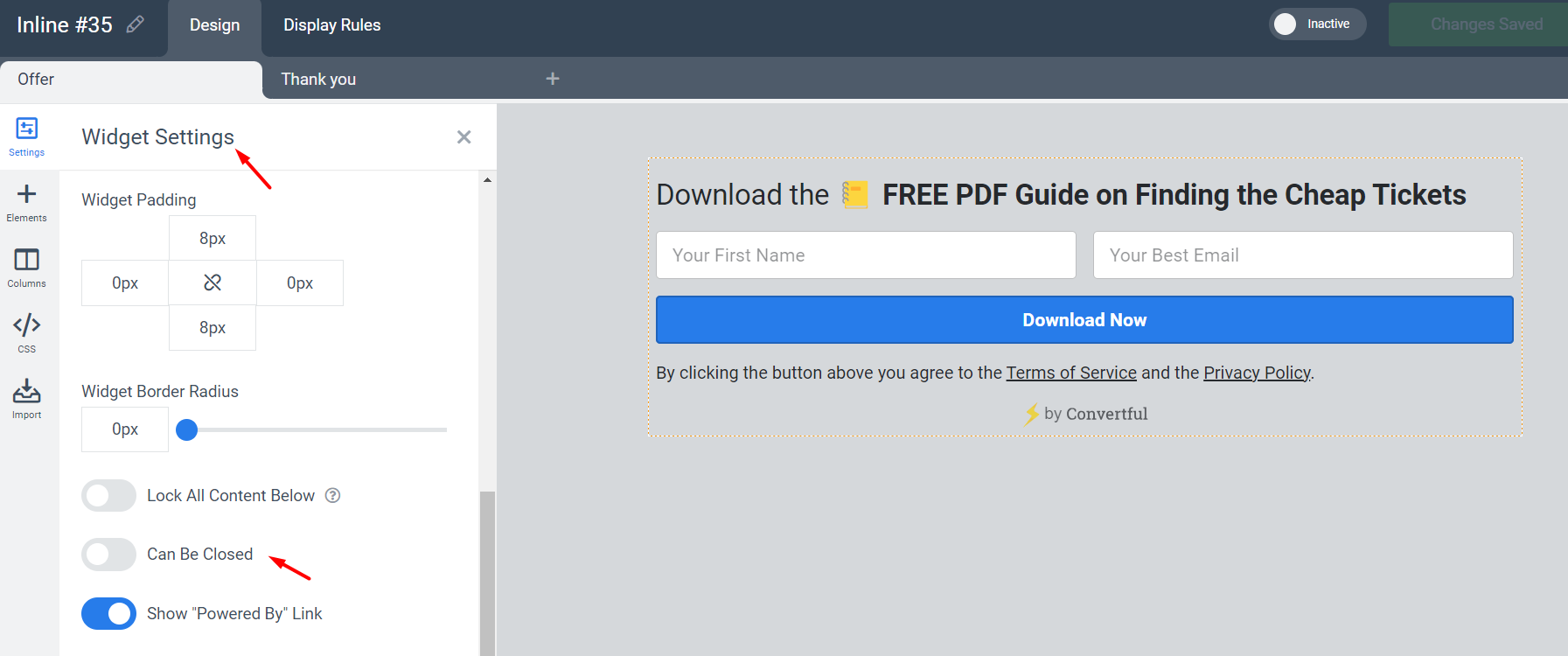
Open the widget editor and go to Widget Settings. Toggle the "Can Be Closed" option off.
Welcome Screen
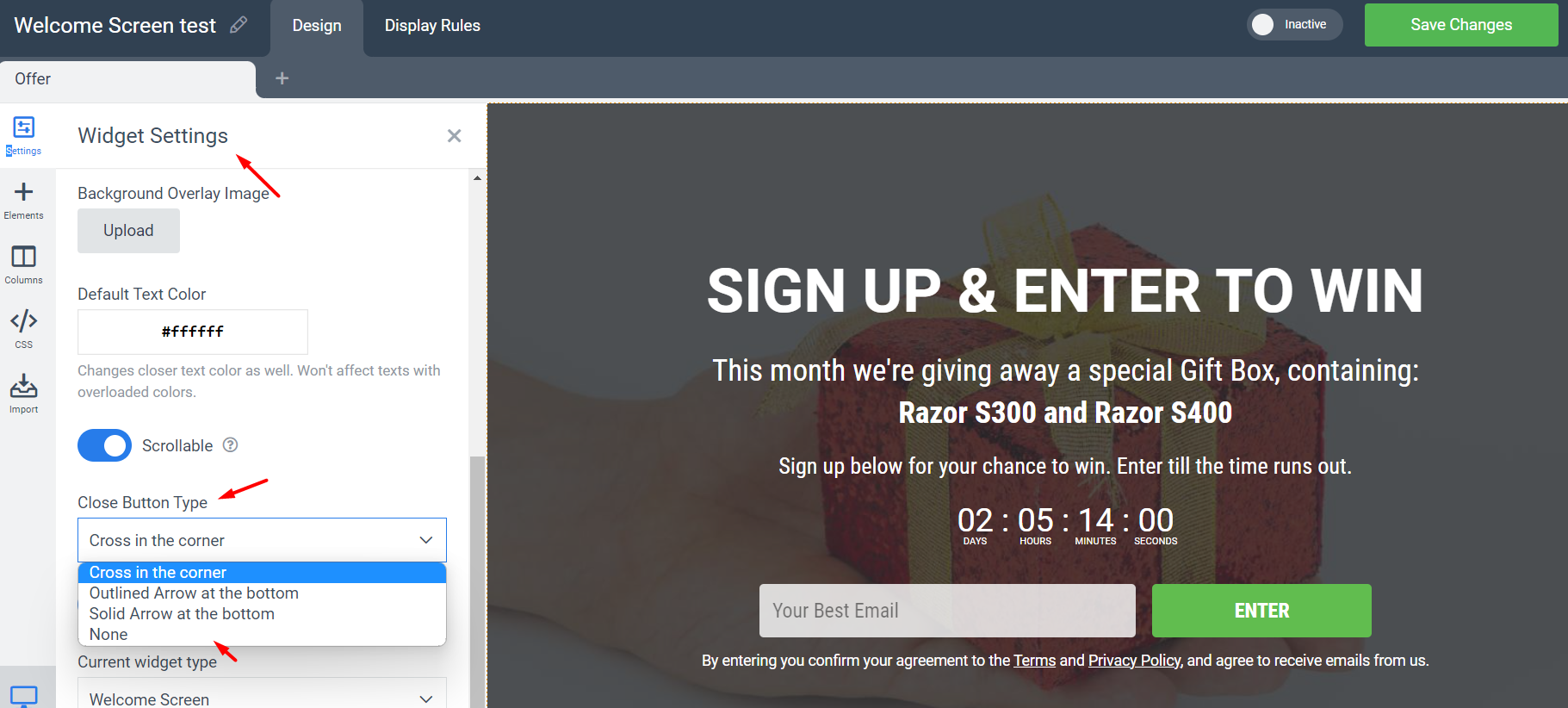
Open the widget editor and go to Widget Settings. Adjust the Close Button Type or remove the close button entirely.
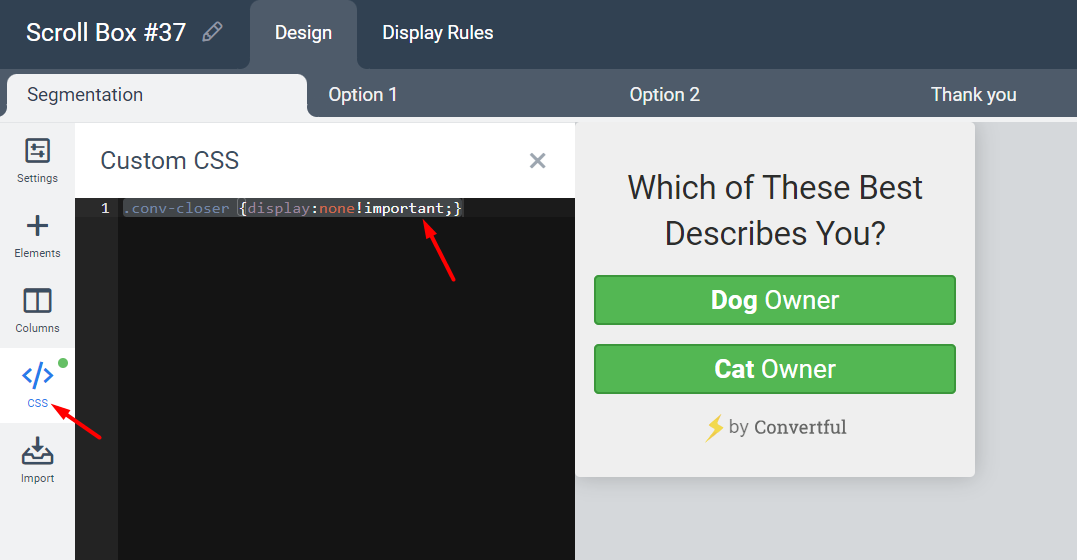
Floating Bar and Scroll Box
These widget types do not have a built-in UI option to remove the close button. Use custom CSS instead:
.conv-closer {
  display: none !important;
}
Add this CSS to your widget's custom CSS field to hide the close button.
Need more help?
If you've worked through this and still need a hand, contact support -- we'll dig in with you.