

Integrations
Suite - Integrately Integration
Note: Integrations must be set up by a Toolkit admin. To connect any of the integrations below, contact support and let us know which integration you'd like added to your account.
Integrately Integration
Connect Popup with Integrately to send your widget submission data to hundreds of third-party apps using webhooks.
Step 1: Create an Automation in Integrately
- Log in to your Integrately account
- Click Create Automation
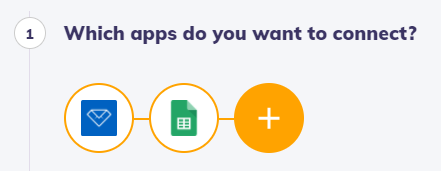
- Choose either 1 Click Automation for a pre-built template, or set up a custom automation using When and Do steps

Step 2: Get Your Webhook URL
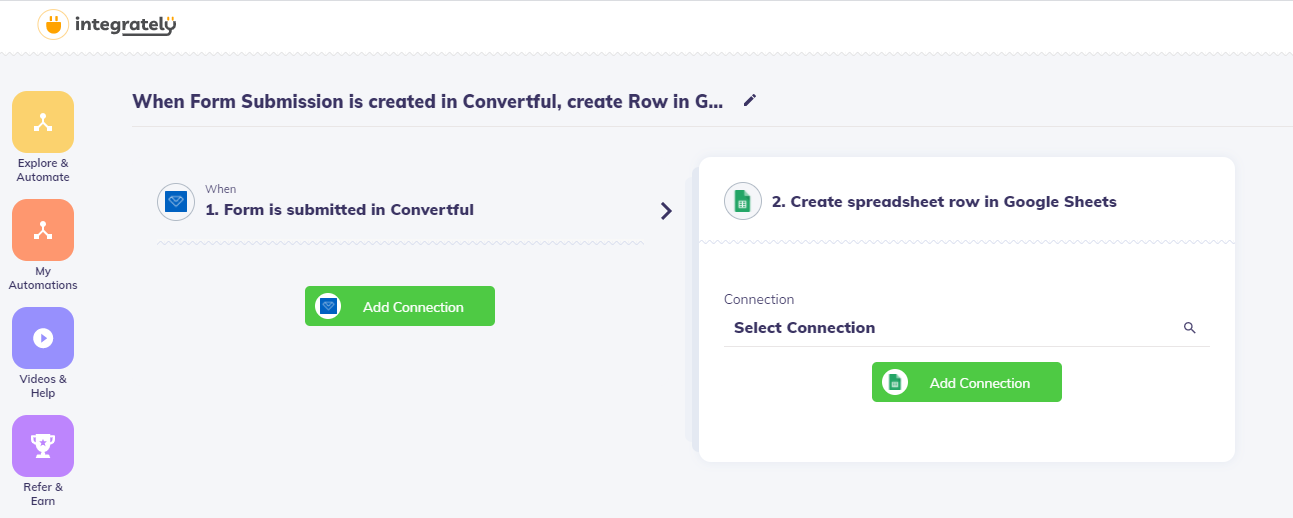
- In your Integrately automation, add a Connection step
- Select Webhook as the trigger
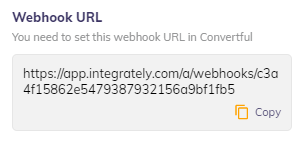
- Copy the webhook URL provided
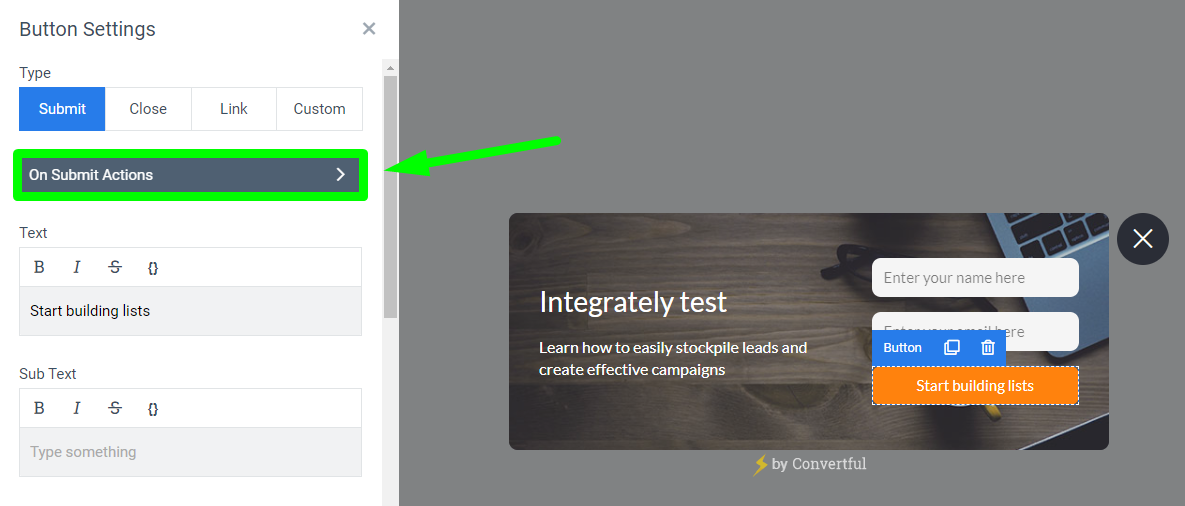
Step 3: Configure the Webhook in Popup
- Open your widget in the Popup editor
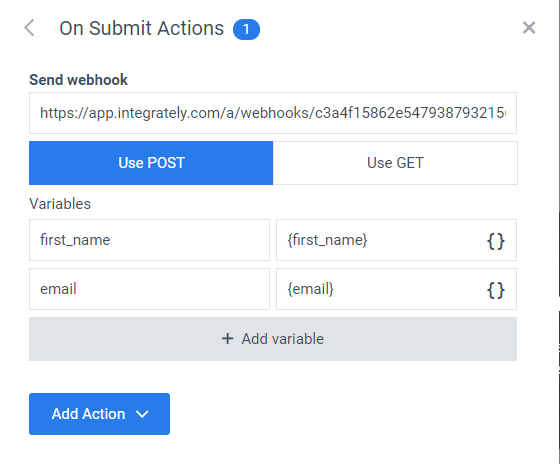
- Add a Send Webhook action to your submit actions
- Paste the Integrately webhook URL
Step 4: Test the Connection
- Publish your widget
- Submit a test entry through your live widget
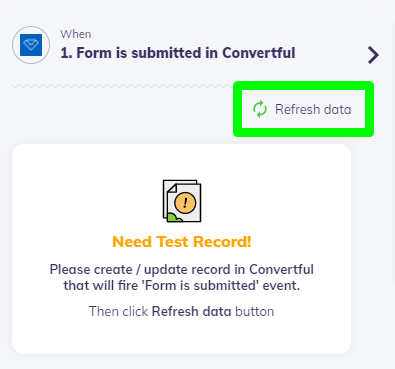
- Back in Integrately, click Refresh data to pull in the test submission
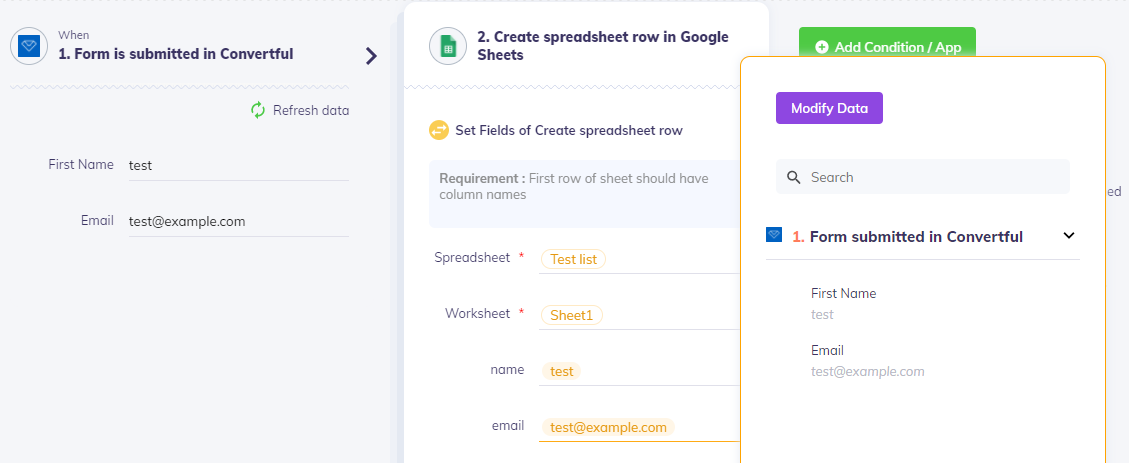
- Map your Popup fields to the destination app fields
- Click Test to verify the data flows correctly, then Go Live
Need more help?
If you've worked through this and still need a hand, contact support -- we'll dig in with you.